> ## Documentation Index
> Fetch the complete documentation index at: https://support.bolt.new/llms.txt
> Use this file to discover all available pages before exploring further.
# Stripe for payments
> Bolt integrates directly with Stripe to handle user payments and subscriptions.
## Overview
Connecting to Stripe enables secure payment processing for your application, supporting both one-time payments and subscription billing.
Bolt's Stripe integration provides:
* Automatic synchronization of products from your Stripe dashboard
* Built-in support for one-time payments and subscriptions
* Secure server-side payment processing through Supabase edge functions
* Automatic webhook handling for payment events
* Test mode support for safe development
The integration requires Supabase as your database provider and handles all the complex payment processing logic automatically.
## Connect Stripe
You can add Stripe payments to any Bolt project that uses Bolt Database or Supabase for its database, authentication, and edge functions.
### Prerequisites
* A Bolt project with a Bolt database or Supabase created in it.
* User authentication set up in your project.
* A Stripe account (individual or business).
Stripe integration requires edge functions and doesn't work with Firebase. Existing custom Stripe implementations cannot migrate to this built-in integration but will continue to function.
## Add Stripe to your project
1. [Create a Stripe account](https://dashboard.stripe.com/register) if you don't have one.
2. Make sure you are in test mode. Learn more about [Testing](https://docs.stripe.com/testing) in the Stripe docs.
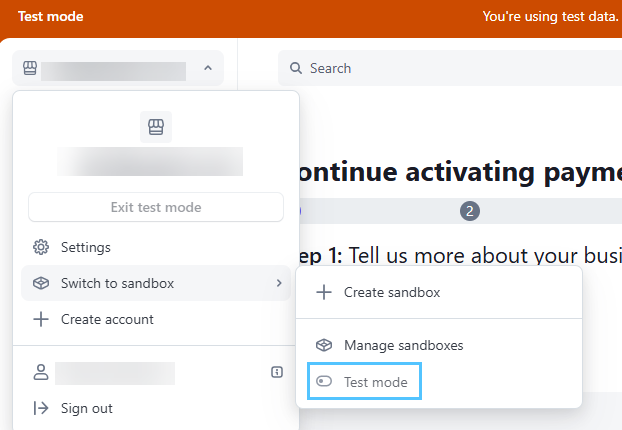 3. Navigate to the [Developers section](https://dashboard.stripe.com/apikeys) in your Stripe Dashboard.
4. Create and copy a secret key.
Use test keys for development. Test keys start with `sk_test_`
To add Stripe payments to your Bolt project:
3. Navigate to the [Developers section](https://dashboard.stripe.com/apikeys) in your Stripe Dashboard.
4. Create and copy a secret key.
Use test keys for development. Test keys start with `sk_test_`
To add Stripe payments to your Bolt project:
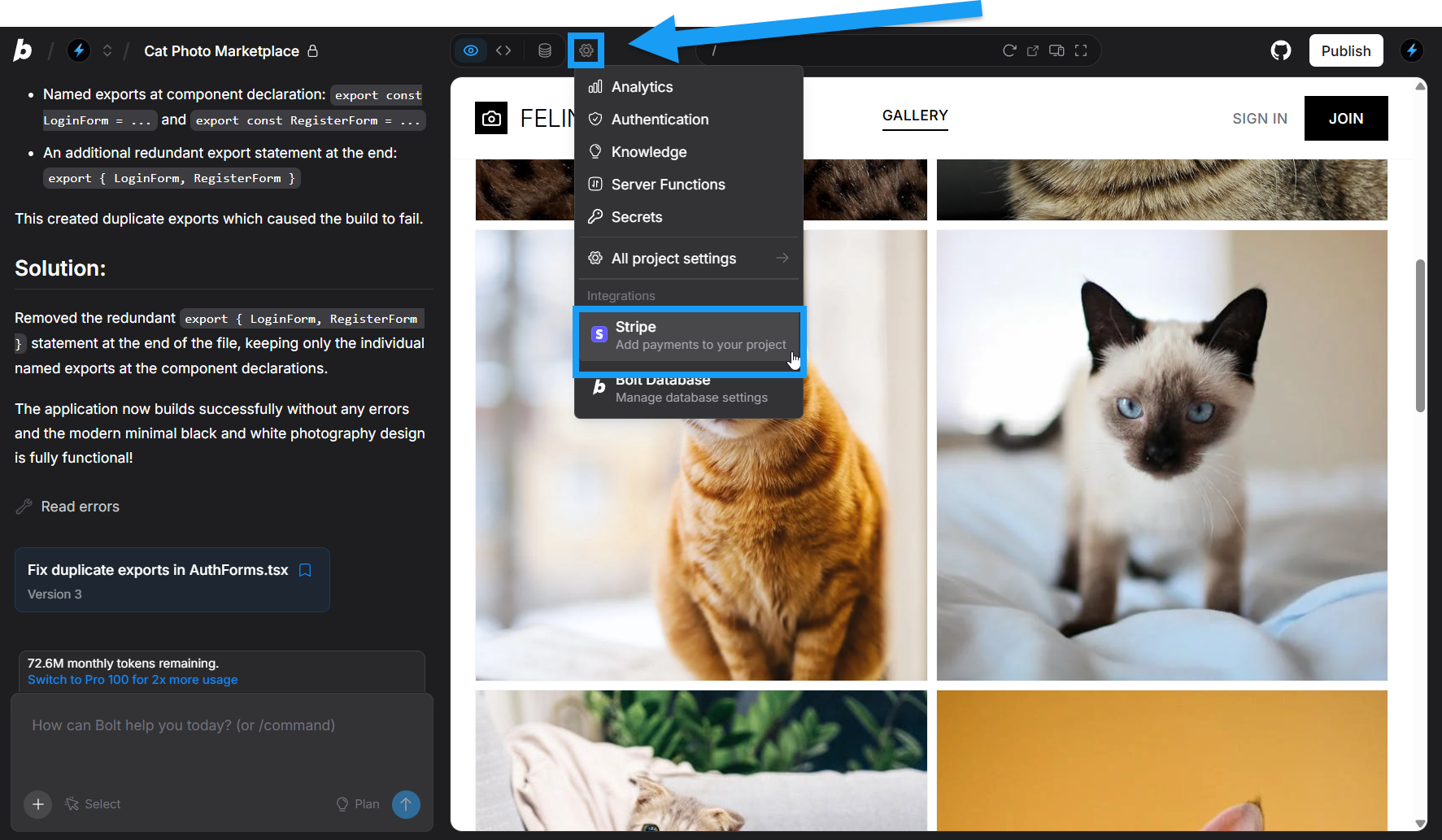 1. Ensure your project has user authentication configured. If not, prompt Bolt to set up user authentication first.
2. In your Bolt project, click the **gear icon** in the top center of your screen, then click **Stripe**.
3. Bolt guides you through the integration setup process:
1. When prompted by Bolt, click **Add Stripe API Key**.
2. Paste your test key into the modal.
3. Click **Retrieve my products**.
4. Select the products you want to use in your Bolt application.
5. Click **Apply selection**. Bolt imports your Stripe products, and automatically creates the Supabase edge functions to handle:
* Secure checkout session creation
* Payment webhook processing
* Subscription management
6. Bolt prompts you to apply the changes to Supabase. Click **Apply changes**.
Always use Stripe's test environment during development. Use [test card numbers](https://docs.stripe.com/testing) to simulate payments. Never use real payment details in test mode.
Bolt automatically handles webhook endpoint registration and signature verification. You don't need to manually configure webhook endpoints in your Stripe dashboard.
## Testing payments
Test your Stripe integration thoroughly before going live:
* Use Stripe's [test card numbers](https://docs.stripe.com/testing) to simulate different payment scenarios.
* Test both successful and failed payment attempts.
* Verify that webhooks are processed correctly.
* Ensure subscription flows work as expected.
Common test scenarios:
* Successful payment with card `4242424242424242`.
* Declined payment with card `4000000000000002`.
* Payment requiring authentication with card `4000002500003155`.
## Payment behavior
Bolt's Stripe integration handles the complexity of secure payment processing automatically.
Product synchronization:
* Products are fetched directly from your Stripe dashboard.
* Changes to products in Stripe sync automatically.
* You can select which products to use in each Bolt project.
Security and compliance:
* All payment processing happens server-side through Supabase edge functions.
* Sensitive payment data never touches your client-side code.
* PCI compliance is handled by Stripe's secure infrastructure.
* Webhook signatures are automatically verified.
Subscription handling:
* Automatic subscription lifecycle management.
* Webhook processing for subscription events (created, updated, canceled).
* Built-in handling of trial periods and prorations.
* Support for multiple subscription tiers.
## Choosing a database
New projects can use either Bolt or Supabase databases. Choose and set up your preferred database before connecting Stripe.
1. Ensure your project has user authentication configured. If not, prompt Bolt to set up user authentication first.
2. In your Bolt project, click the **gear icon** in the top center of your screen, then click **Stripe**.
3. Bolt guides you through the integration setup process:
1. When prompted by Bolt, click **Add Stripe API Key**.
2. Paste your test key into the modal.
3. Click **Retrieve my products**.
4. Select the products you want to use in your Bolt application.
5. Click **Apply selection**. Bolt imports your Stripe products, and automatically creates the Supabase edge functions to handle:
* Secure checkout session creation
* Payment webhook processing
* Subscription management
6. Bolt prompts you to apply the changes to Supabase. Click **Apply changes**.
Always use Stripe's test environment during development. Use [test card numbers](https://docs.stripe.com/testing) to simulate payments. Never use real payment details in test mode.
Bolt automatically handles webhook endpoint registration and signature verification. You don't need to manually configure webhook endpoints in your Stripe dashboard.
## Testing payments
Test your Stripe integration thoroughly before going live:
* Use Stripe's [test card numbers](https://docs.stripe.com/testing) to simulate different payment scenarios.
* Test both successful and failed payment attempts.
* Verify that webhooks are processed correctly.
* Ensure subscription flows work as expected.
Common test scenarios:
* Successful payment with card `4242424242424242`.
* Declined payment with card `4000000000000002`.
* Payment requiring authentication with card `4000002500003155`.
## Payment behavior
Bolt's Stripe integration handles the complexity of secure payment processing automatically.
Product synchronization:
* Products are fetched directly from your Stripe dashboard.
* Changes to products in Stripe sync automatically.
* You can select which products to use in each Bolt project.
Security and compliance:
* All payment processing happens server-side through Supabase edge functions.
* Sensitive payment data never touches your client-side code.
* PCI compliance is handled by Stripe's secure infrastructure.
* Webhook signatures are automatically verified.
Subscription handling:
* Automatic subscription lifecycle management.
* Webhook processing for subscription events (created, updated, canceled).
* Built-in handling of trial periods and prorations.
* Support for multiple subscription tiers.
## Choosing a database
New projects can use either Bolt or Supabase databases. Choose and set up your preferred database before connecting Stripe.