

bolt.host. You don’t need to set up a separate account with a third-party hosting service: open the Publish menu to get started.
If you’re on a paid plan, you choose whether your site is visible to everyone on the web (public) or only to your team and other people you invite (private). Private sites are useful for sharing in-progress work with specific collaborators or with your organization before it’s ready for public launch.
On the Free plan, all published sites are public.
If you belong to a team, other members of your team can view your site by default, even if it’s private. Team admins can also set site visibility to private only or public only for all team projects. If your team has a global visibility setting, you’ll see it in the
Publish menu.yoursite.com) or buy a domain through Bolt.
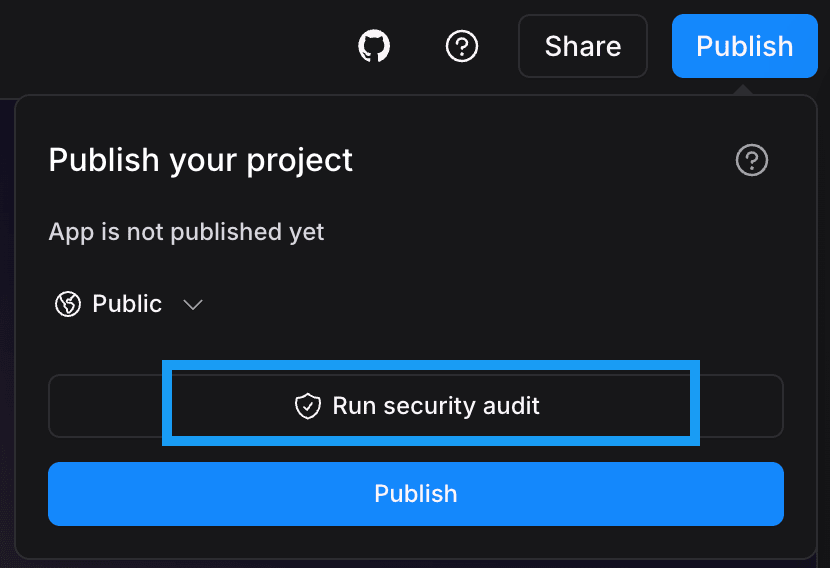
Before publishing, check for security problems so you can fix them before anyone else uses your site.
Publish your project as a publicly available site
Only the project owner or collaborators with Co-owner permissions can publish the project, update its visibility, and manage access. Collaborators and teammates can view the published site but can’t perform these actions themselves.
Publish menu, the default visibility is public. If you only want invited users to see your site, publish it as private instead.
To publish your project as a public site:

- In the top-right corner of your screen, click Publish.
- In the
Publish your projectmenu, click Publish again. - Wait about a minute for Bolt to deploy your site.
- Click the link that appears in the chat window to open your site in a new browser tab.
- (Optional) Attach a custom domain if you’re on a paid plan.
Publish your project as a private site with restricted access
When your site is private, only your team and invited users can see it. It’s not generally accessible on the web, and search engines can’t find or list it in search results. Publishing a project as a private site lets you share it with collaborators while continuing to develop it for public launch. Private sites are available on paid plans only.Sites with a custom domain can only be published publicly. To publish privately, first disconnect the domain.
- In the top-right corner of your screen, click Publish.
- In the
Publish your projectmenu, change the visibility from Public to Private.

- (Optional) Click Manage access to add collaborators or domain access to your site. If you’re not ready to add viewers yet, you can update your site later to manage who can see it.
- Wait about a minute for Bolt to deploy your site.
- Click the link that appears in the chat window to open your site in a new browser tab.
Manage access for collaborators and trusted domains
You can invite individual collaborators using an email address or add a trusted domain so that any user whose email address belongs to a certain domain (for example,exampleco.com) can view your site. Adding a trusted domain reduces the effort when sharing openly within your company or organization.
If you’re on a team, you don’t have to invite your teammates individually. They have access to view your site by default.
1
Go to your site's access settings
- In the upper-right corner of your screen, in the
Publishmenu, make sure the site visibility is set toPrivate. - Click Manage access.
2
Invite individual viewers
Enter the email address of each user you want to add, then click Invite.
3
Add trusted domains
- To the right of
Trusted domains, click Manage. - Enter any domain whose viewers should automatically get viewing access. For example, if you enter
exampleco.com, any user whose address ends in@exampleco.comcan see your site. - Click Save domains.

4
Publish your site
Do one of the following:
- To publish your project for the first time, click Publish.
- To update access to a previously published site, click Update.
Pending status.
Resend an invitation or remove a viewer
To resend an invitation or remove a viewer from your private site:- In the upper-right corner of your screen, click Publish.
- Click Manage access.
- Next to the viewer you want to manage, click the three dots (…).
- Do one of the following:
- To resend an invitation to a pending viewer, click Resend invite.
- To remove a viewer’s access, click Remove.
Check security before you publish
If you’re on a paid plan, you can run a security audit from thePublish menu before you publish your site, and Bolt automatically fixes any issues it finds.
Change your bolt.host URL
The first time you publish your site, Bolt automatically creates a random bolt.host URL name for you.

bolt.host domain name by following these steps:
- In the
Publishmenu, to the right of your domain URL, click the Edit domain (pencil icon). - Enter your new domain URL.
- If you want to immediately republish your site using the new domain URL, select Republish after updating.
- Click Save.
Publish changes to your live site
After you publish, changes you make to your Bolt project aren’t automatically applied to your published site. This lets you continue working on your project and control when to make updates live. To publish changes, in thePublish menu, click Update.
Unpublish your Bolt-hosted site
If you need to take your site offline, and you published it with Bolt hosting, follow the steps in this section to unpublish your project safely.Before you begin, check whether your project is using a custom domain. If so, you have to disconnect the custom domain before you unpublish your site. After the site is unpublished, you can reconnect the domain at any time if you decide to publish again.

- In the
Publishmenu, click Unpublish. - Click Unpublish again to confirm.