

Overview
Figma is a widely used design tool. From their docs:Figma Design is for people to create, share, and test designs for websites, mobile apps, and other digital products and experiences. It is a popular tool for designers, product managers, writers and developers and helps anyone involved in the design process contribute, give feedback, and make better decisions, faster. What is Figma?.Using Bolt’s Figma integration, you can quickly load Figma designs into Bolt, and generate sites and UIs based on the designs. You can collaborate on and refine designs in Figma, before moving into Bolt for development. Bolt uses Anima to handle turning Figma designs into apps.
Connect to Figma and import a frame from the homepage
- On the Bolt homepage, click Import from Figma.
- Follow the steps to connect your Figma account.
- In the Choose a Figma frame window, paste the URL of the Figma frame you want to import.
- Click Import Figma frame into Bolt. Bolt processes the frame and generates a project based on the layout.
Import a Figma frame from the chatbox
In addition to starting your build from the Bolt homepage by importing a Figma frame, you can also import a Figma frame for design reference using the chatbox.Learn more about Figma frames.
- Log in to your Bolt project.
- Click the plus icon in the bottom-left corner of the chatbox.
- Click Import from Figma.
- Paste your Figma frame URL.
- Click Import Figma frame into Bolt.
Build from a Figma frame using your design system
If you’re on a paid Team account, adding a design system can help build your Figma frames into working webpages. When you import a Figma frame while building with a design system, Bolt’s design system agent processes the frame and recreates it using your real design system components.To import from Figma, you need to be logged in to your Figma account. For instructions, see Connect to Figma and import a frame from the homepage.
- On the Bolt homepage, in the chat toolbar, click Design System, then select the design system you want to use.
- In the chat toolbar, click the plus icon (+), then click Import from Figma.
- Select Screenshot.
- Paste the URL of your Figma frame and follow the prompts.
- Add any additional context to your prompt, then click Build now.
Tips for using Figma import with your design system
- Make sure your design system is set to the correct active revision before importing. Bolt uses whichever revision is marked active.
- If the output doesn’t match what you expected, check that your design system has the relevant components. You can browse what Bolt knows about your design system by opening the Storybook from the project chat.
- Use your prompt to fill in any context Bolt can’t infer from the screenshot alone — for example, interaction states, content guidelines, or component variants you want to prioritize.
New to Figma and design
If you’re completely new to Figma, or to designing apps, this section contains information to get you started.Key terms
- UI: user interface. Usually means a GUI.
- GUI: graphical user interface. Most interfaces are graphical, but sometimes people refer to GUIs to differentiate them from text-based interfaces such as command-line tools.
- Web apps: interactive software applications that run in a browser. For example, Bolt itself is a web app.
- Responsive design: a design that works on different devices and screen sizes.
- Accessibility: making your design usable for everyone. For example, ensuring your color contrast is clear for people who are colorblind, or making your font size readable.
Figma frames
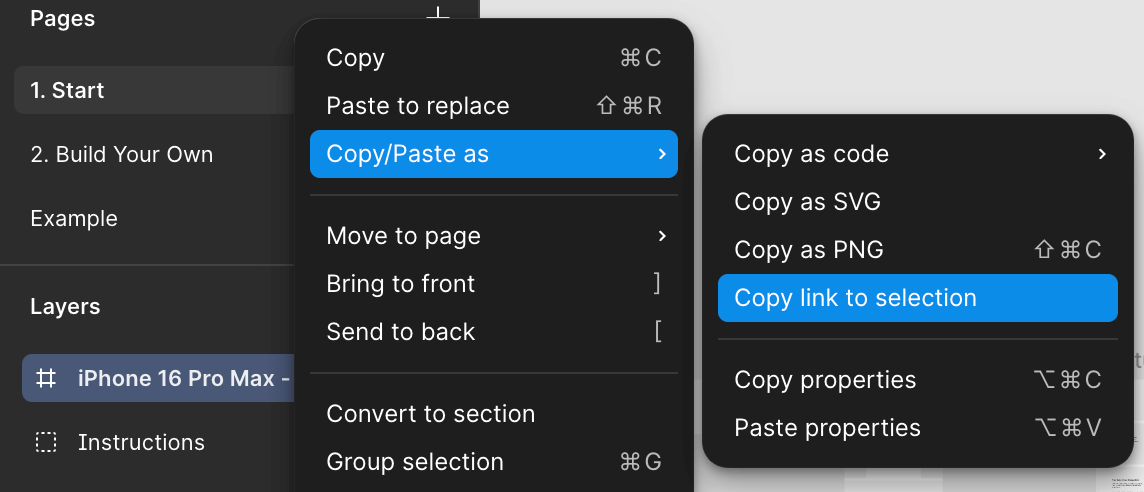
When importing from Figma, you use a single frame, not an entire Figma project.Frames are layers that act as containers to organize other layers—such as shapes, images, and text—into cohesive designs. You can even nest frames within other frames, allowing you to create more complex designs. Frames in Figma designTo get the frame URL:
- Right-click the frame.
- Click Copy/Paste as > Copy link to selection.
Responsive design
A responsive design is one that works on multiple screen sizes and orientations. For example, you need to make your design responsive if you want it to work well on both mobile and desktop. There are two ways to do this:- Follow Anima’s guide to Create Responsive Designs in Figma. This is the best option: although it means taking more time to design your app, it gives you full control of the design in all sizes and on all platforms. It also saves tokens.
- Load your design into Figma, then ask Bolt to make it responsive.
- In your app preview, click the Responsive mode icon in the top center of your screen.
- Choose a device from the dropdown to see how your app appears, or choose Responsive, then resize by dragging the sides of the preview to check the appearance at different widths.