

Check Bolt’s status
Before troubleshooting, check the Bolt status page for any active incidents. If Bolt is experiencing a known issue, check your project again after the issue resolves to see if that also resolves your problem.Rule out browser and network issues
Before trying other troubleshooting steps, start with these checks:- Temporarily disable browser extensions, especially ad blockers, and see if the issue clears.
- If you’re using a VPN, turn it off and try again.
- Check whether your antivirus software is blocking Bolt assets, particularly if you see a 403 or 404 error.
If your project isn’t loading or running in the preview window, see Preview issues.
Bolt didn’t do everything you asked in your prompt
If Bolt only built part of what you asked for, dropped a feature, or seemed to lose track partway through, the most common cause is a single large, multi-part prompt. When working with LLM-based tools like Bolt, it’s best to approach big updates in small, manageable steps. Large or complex requests can overwhelm the system or lead to unclear results or errors. Focus on one feature or section at a time rather than trying to handle multiple changes at once. This approach makes it easier to track progress, identify issues, and maintain control over your project. Follow this simple process:- Make one change.
- Check that the change works as expected.
- Then move on to the next change.
Prompt too long, or project exceeds total supported prompt size
You can use the following methods to reduce your project’s size if it exceeds the supported prompt limit:Reduce the size of your project
As your project grows, Bolt has to process more source material to understand your code and respond to your prompts. Reducing how much information Bolt needs to read helps keep your context manageable. There are a couple of ways to reduce your project size:- Clean up unused files.
- Break up large files into smaller ones (also called refactoring).
Before you start
Before you clean up or refactor your project, download your project as a backup. By default, Bolt keeps a version history of your project. If a cleanup causes unexpected changes, you can restore a version saved before the cleanup ran. Downloading your files is still useful if you want to make specific updates after a cleanup, like adding back selected files instead of restoring an entire earlier version.Clean up unused files
You can ask Bolt to find and remove unused files from your project. If you’re comfortable using the terminal, you can also run a cleanup command yourself in Code view, which doesn’t use tokens.Ask Bolt to clean up your files
Anyone can clean up files by prompting Bolt, with no Code view required. Try a prompt like:Remove any unused files and components from this project.
As Bolt builds, it may add Markdown (.md) files for record-keeping. After storing these files, it reads them into your context on every prompt. To get rid of Markdown files you no longer need, try a prompt like:
Look at the number of .md files in this project and keep only the ones that have necessary project context.
Run Knip in the terminal (optional)
Knip is a tool that finds and removes unused files. Running it in the terminal doesn’t use any tokens, so it’s a good option if you’re comfortable working from the command line.- Open the terminal in Code view.
-
Run the following command:
npx knip --production --fix --allow-remove-files - Check the output in the terminal to confirm the command ran successfully.
Break up large files
Large files are a common reason the context window gets too full. When Bolt has to process files with thousands of lines of code, the context window fills up quickly. To break up large files:-
Ask Bolt for a list of any files in your project longer than about 700 lines. For example, use a prompt like this:
Scan my entire project and list every file over 700 lines. For each one, show the file name, its path, and its line count, sorted by longest first. Don't change anything yet. I just want the list. - Copy the list from the chatbox and save it somewhere you can refer back to, like a text file.
-
Ask Bolt to refactor each file. For example, use a prompt like this:
Please refactor [filename] by splitting it into multiple files. Keep the original file to act as a router so the app continues to function after the refactor. Add basic comments to these files to understand what each file and its parts are for.Repeat this prompt for each file, and test your project after each refactor to make sure it works as expected. Testing one file at a time makes it easier to spot any unintended changes.
Advanced techniques
You can also use terminal commands to help reduce your project size. These commands are especially useful once you’ve completed the earlier cleanup steps and want to make sure no unnecessary code or dependencies remain. Find and remove unused dependencies- Click the code icon to switch to Code view.
- Click Terminal in the bottom section of the page.
- In the terminal, run
npx depcheckto scan your project for any dependencies that are not being used in your codebase. - Review the results and remove any unused packages listed in the output. This keeps your project lightweight and easier to maintain.
- Click the code icon to switch to Code view.
- Click Terminal in the bottom section of the page.
- Run
npm dedupeto analyze your installed packages and remove duplicate or outdated versions of dependencies.
Bolt stuck or unresponsive
If Bolt becomes stuck or stops responding to commands, clearing the context can often resolve the issue.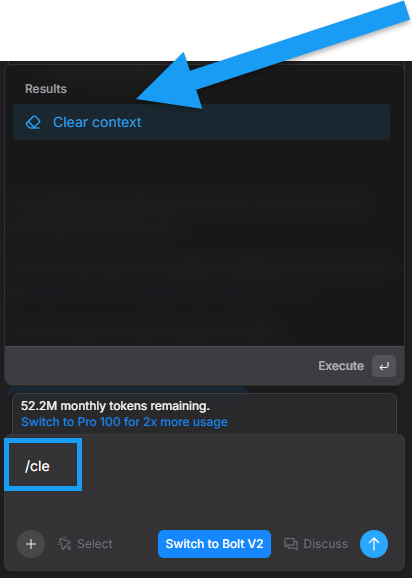
/clear command in your chatbox, then clicking Clear context in the Results section above.
Projects missing after signing in
If you sign in and don’t see the projects you’re expecting, you’re most likely either in a different workspace or signed in to a different Bolt account than the one that owns those projects.Check which workspace you’re in
One Bolt account can hold several workspaces that have their own projects.- In the left sidebar, click your account name.
- Note which workspace has a checkmark next to it, then select your other workspaces and check your list of projects in each one.
Check which account you’re signed in to
The account menu shows the email address you’re signed in with. If it isn’t the address you were using when you built your projects, you may need to sign in to a different account. This can happen if you originally signed up with one set of credentials (like Google or GitHub) and then later signed in with another (like an email address and password). To sign in to another account, sign out, then sign in with the credentials that account uses. If you aren’t sure which method you’re currently signed in with, you can find that information on the Sessions page of your StackBlitz account.Open the project from your StackBlitz collection
Every project in all your workspaces under one account appears in your Bolt collection on StackBlitz.- Sign in to StackBlitz.
- In the left menu, click Collections, then click Bolt collection.
- Find your project, then click its title to open it.
- In the top-left corner of the screen, click Open in bolt.new to reopen it in Bolt.
Images not uploading or working properly
If you attached an image to use in your project but it isn’t showing in your project preview, try adding the image file directly to your project in Code view instead.- Click the
<>icon to switch to Code view. - Click the
Publicfolder to expand it. - Drag and drop your image file into the
Publicfolder. - Right-click the image file, then click Copy Relative Path.
- In your prompt, paste the path and tell Bolt which image to use. For example:
Use public/hero-image.png for the header image.
Tips for reliable editing of larger projects
Use the following best practices to help Bolt make consistent, effective edits, especially when working on larger or more complex projects.1. Scope each prompt to a single change
Write prompts that focus on one specific part of the project at a time. Large, multi-step requests can overwhelm the editing process, particularly in bigger applications. Smaller, well-scoped instructions make it easier for Bolt to apply changes accurately.2. Create and maintain a clear README file
Create aREADME.md file that summarizes the project’s purpose, structure, and key components. You can ask Bolt to generate this file for you. Referencing the README whenever you start a new task helps Bolt quickly understand the context and layout of your app.
3. Reset context between major tasks
Use the/clear command in the chatbox when switching to a new area of the project. After clearing, ask Bolt to read the README.md file and then provide your new instructions. This refreshes the working context so Bolt can focus fully on the current task.
4. Use debug logging to investigate errors
When issues occur, ask Bolt to add debug logging to the relevant code paths. Open the app in a separate browser tab, reproduce the issue, and view the logs in the browser console.- On macOS, use
CMD + OPTION + J - On Windows, use
CTRL + SHIFT + I
5. Break down very large files
If a file Bolt is editing is around 500 lines or more, request a refactor into smaller, more focused files. You can use the following prompt:Please refactor [filename] by splitting it into multiple files. Add comments explaining the purpose of each new file. Keep the original file as a router so the app continues to function after the split.
Smaller files are easier to reason about and tend to reduce editing errors.
Following these tips helps Bolt stay focused on the right parts of your project and improves the reliability of each edit.