

You need a Google account to set up Google SSO for your website.
How it works
Using your Google account, you’ll create an OAuth 2.0 app in the Google Cloud Console, which generates a Client ID and Client Secret that identify your website to Google. Then, you’ll enter those values into Bolt’s Authentication settings. After that, your visitors can sign in to your website securely using their Google account.Part 1: Enable Google SSO on your project
Before creating your Google credentials, complete the initial setup for Google SSO in Bolt.- Log in to Bolt and open your project.
-
Prompt Bolt to create a user authentication database to use with Google SSO. For example, as part of your prompt, include the following:
Add Sign-In with Google to my application.You can’t view Authentication settings in your project until you’ve created a Bolt database or connected to a Supabase project. - After Bolt creates your database, click the database icon in the top center of your screen.
- Click Authentication.
- Click Continue with Google.
- Turn on Enable Google Sign In.
- Your authorized JavaScript origin
- Your authorized redirect URI
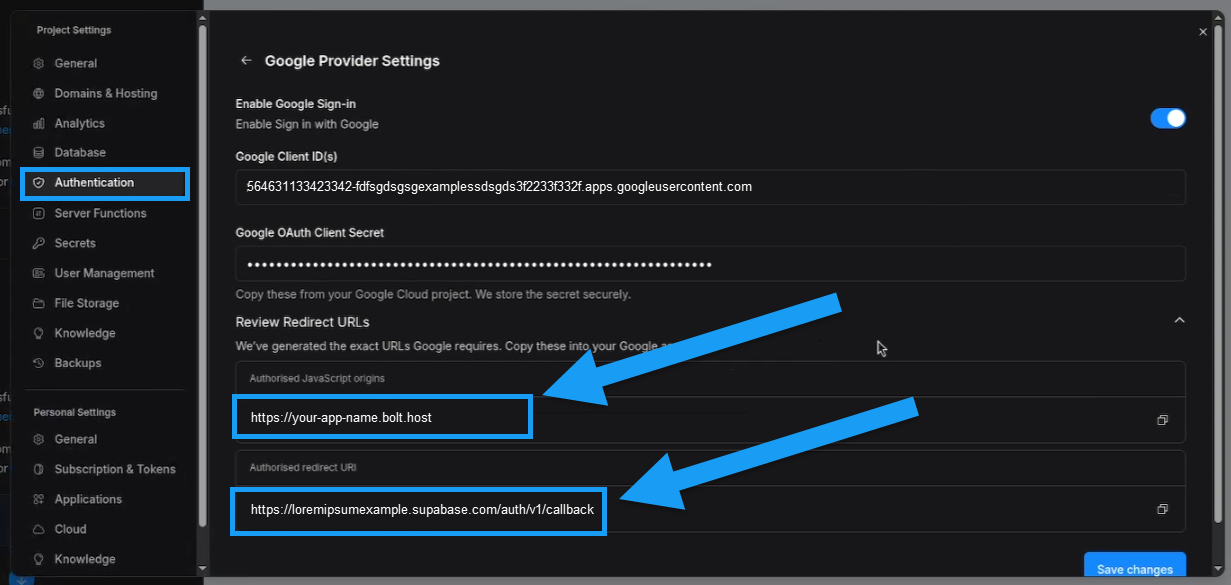
Part 2: Create your Google credentials
Google Cloud Console may look different depending on your account and setup. This guide shows a personal Google account without an organizational connection. For complete technical details, see Google’s official guide on Creating Access Credentials.
1
Go to the Google Cloud Console
Visit https://console.cloud.google.com/ and sign in with the Google account you want to use. If you’re new to the console, you may need to agree to their terms first.
2
Create or select a project
- Click Select a project in the top-left of your screen.
- Click New project in the top-right corner of the window (or select an existing one).
- Enter a project name or use the default.
- Select your organization.
- Click Create.
- Click Select project when your new project shows up as a notification.
3
Enable the Google Identity Service
- Click Go to APIs overview.
- Click OAuth consent screen.
- Click Get started.
- Enter your app name and select a user support email, then click Next. (The email must be connected to your Google account; you cannot manually enter one.)
- Select External.
- Enter a contact email. (This does not have to be connected to your Google account.)
- If you agree to the terms, select the checkbox, then click Create.
4
Create OAuth credentials
- Click Create OAuth client.
- Select Web application.
- Enter a name for your credentials (not shown to end users).
- Click Add URI under Authorized JavaScript origins.
-
Enter your origin URI found in your Authentication > Google settings from Part 1 of this guide, for example
https://your-app-name.bolt.host. - Click Add URI under Authorized redirect URIs.
-
Enter the redirect URL found in your Authentication > Google settings from Part 1 of this guide, for example,
https://loremipsumexample.supabase.com/auth/v1/callback. - Click Create.
Part 3: Enter your Google credentials in Bolt
After creating your Google SSO credentials, enter your Client ID and Client Secret into your project’s Authentication settings.1
Copy your Google Client ID and Client Secret
- Under the Client ID column, click the copy icon next to your Client ID and save it.
- Click your project name to open it.
- Under Client secrets, click the copy icon next to your Client secret and save it.
2
Enter values into Bolt
- In your Bolt project, click the database icon in the top center of your screen.
- Click Authentication.
- Click Continue with Google.
- Paste in your Google Client ID and Client Secret in the appropriate fields.
Part 4: Test your OAuth app
Google’s OAuth flow blocks iframes, so you need to test using your published site rather than in the Bolt Preview window.- In Bolt, publish your project to make the latest version live.
- Open your published site in a new tab.
- Sign in with a Google account to confirm everything is working.
Next steps
Your Google credentials are now set up, which means your Bolt site can authenticate users via Google SSO. By default, Google sets your OAuth app’s publishing status to Testing, which limits sign-in to up to 100 users. There are a few additional steps to take in the Google Cloud Console before your sign-in flow is ready for real users.Add OAuth app branding
When your Google OAuth app is in Testing mode, only your domain appears on the sign-in screen. To show your app name and logo, you need to complete your branding and get it verified by Google. To add, verify, and publish your branding, sign in to Google Cloud Console, then go to Google Auth Platform > Branding. For instructions, see Manage OAuth app branding in Google’s support documentation.Your app name and logo won’t appear until you publish your branding, even after verification is complete.