

- Get feedback from other people: Share your project to let collaborators add or reply to comments on the project’s preview. Use the thread to iterate on ideas, and send feedback to Bolt to make the changes in your project.
- Give instructions to Bolt: Use comments to add instructions targeted to specific areas of the preview. As you review your project, leave comments about changes you want, then select them in the Comments panel and send them to Bolt. This works even if you haven’t shared your project.
Comments are available in your project’s preview but not on the published site.
Comments interface
Comments appear in two places in your project: as pins on the preview and as a list in the Comments panel. You add comments in the preview, and you read, reply to, and manage them in the panel. To open the Comments panel and show comment pins on the preview, click Comments (chat bubble icon) on the left side of the project header. If your project has unread comments, a number on the button shows how many.On a phone, Comments is located in your project menu rather than in the Bolt header. To learn more, see Commenting on a mobile device.
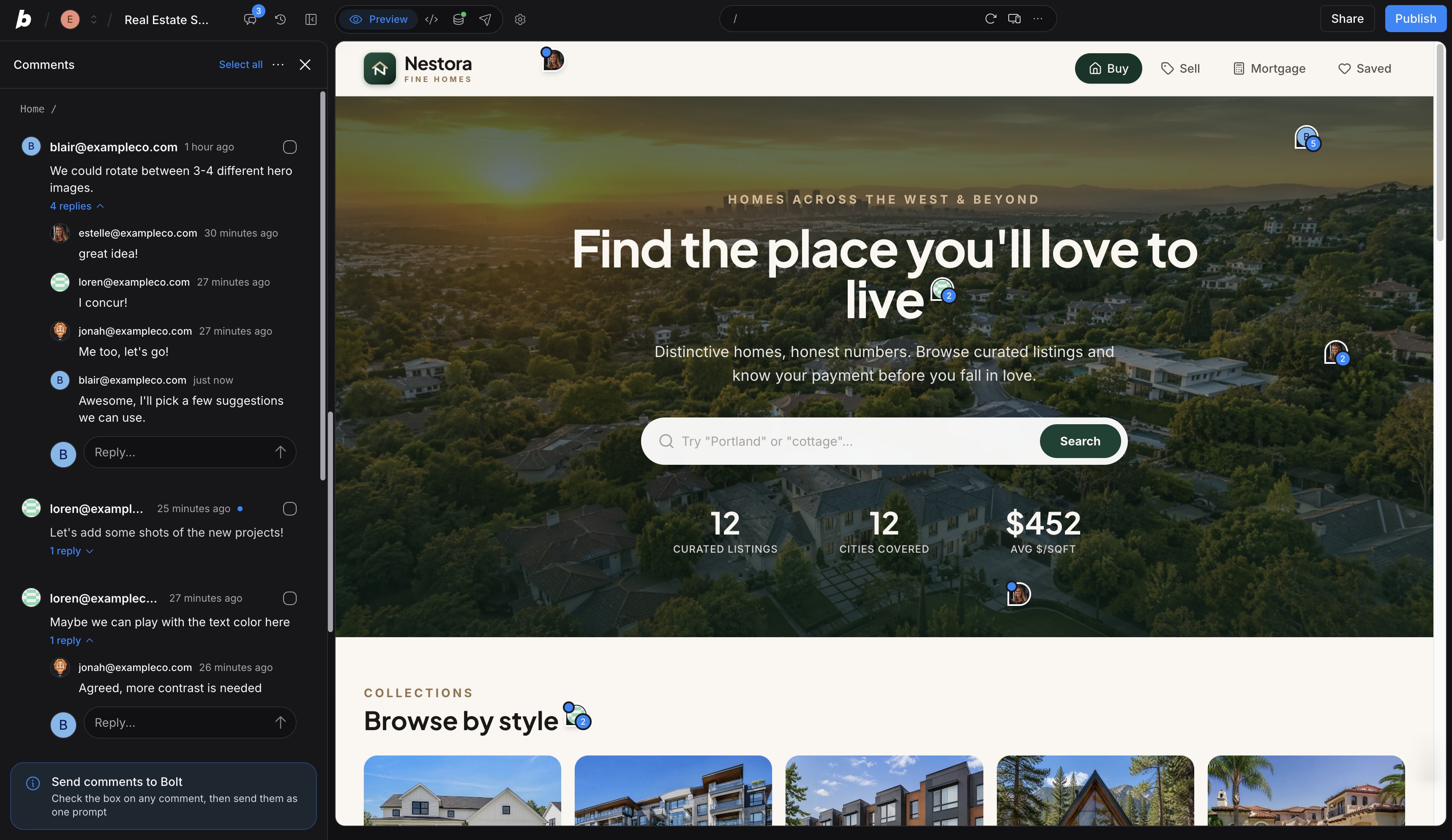
Comments in the preview
Adding a comment drops a pin on the preview, in the spot where you placed the comment. The pin shows the avatar of the person who added the comment. If the comment thread has any replies, the pin also shows a counter with the number of comments in the thread. A blue dot on the pin means the thread has unread comments, as shown in the following image.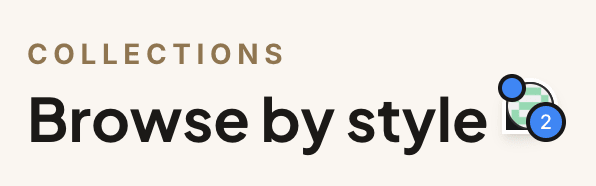 The preview shows only pins. To read a thread, click its pin to open the thread in the Comments panel.
The Comments panel
The panel lists the open comments in your project, grouped by page. Use the following options to review and manage your comments:- Header controls: The Comments panel header includes these options:
- Select all: Available for collaborators with the Editor and Co-owner roles. Selects all open comments so you can send them to Bolt.
- Three dots icon (…): Opens a menu where you can switch between open and resolved comments and set your notification preference.
- Page groups: Comments are grouped under the page of your project that they’re on, using a format like
Home /or/#/favorite-items. - Comments: Each comment shows who added it and when, the first two lines of text, and how many replies it has. A blue dot means the thread is unread. Editors and co-owners also see a checkbox on each comment. To read a thread, click the comment to open all of its replies and a reply box.
- Comment options: Point to a comment and click the three dots icon (…) to see what you can do with it. The options you see depend on your role and on whether you added the comment.
- Send box: At the bottom of the panel, editors and co-owners see a Send comments to Bolt hint. After you select comments, it turns into the box where you can add a note and send them.
Commenting permissions by role
Anyone with access to a project can comment and reply to comments. Some other actions are available only if you added the comment or if you have a specific role in the project.Sending a comment to Bolt is the same as prompting, which is available only to the Editor and Co-owner roles. Viewers can’t select comments and don’t see the Send to Bolt button.
Add a comment
To let collaborators comment, you need to share your project with them first. Until they accept your project invite, they won’t be able to see or interact with your project, and you can’t tag them in comments. You can’t add comments on a phone, but you can manage existing ones. To learn more, see Commenting on a mobile device. To add a comment:- Open a Bolt project.
- In the project header, click Comments (chat bubble icon). The Comments panel opens and the preview is ready for you to add comments.
- In the preview, click where you want to leave a comment. A pin appears and the comment box opens.
-
Type your comment, then click the blue arrow icon or press
ENTER. To start a new line, pressSHIFT+ENTER. The pin remains on the preview, and the comment appears in the Comments panel.
ESC. When you’re done adding comments, click Comments again to close the Comments panel.
Because you can’t navigate through your project while the Comments panel is open, you need to close the panel before you click a link to go to another page.
Reply to a comment
To reply to a comment or thread:- In the Comments panel, find the comment or thread you want to reply to.
- If the thread is collapsed, click it to view all replies.
- In the text box, enter your reply, then click the blue arrow to send it.
Mention a collaborator in your comment
To mention a specific collaborator:- In a comment or reply, tag the person by typing
@followed by their name, then select them from the list.
You can only mention people who already have access to the project. Typing out someone’s name or email address alone won’t give them access.If the person you want to mention doesn’t appear in the list, invite them to your project. After they accept the invite, you can tag them and select their name.
Edit or delete a comment
You can edit or delete only comments that you added.- In the Comments panel, find the comment or reply.
- Point to the comment, click the three dots icon (…), then do one of the following:
- To edit the comment, click Edit.
- To delete the comment, click Delete comment. Depending on whether it’s a single comment, a thread, or a reply, the option label may differ slightly.
Resolve or reopen a comment
Resolved comments move out of the open list and into Resolved comments in the Comments panel. They no longer show a pin in the preview. All collaborators can resolve a comment or thread they added. Editors and co-owners on the project can resolve any thread. To resolve a comment or thread:- In the Comments panel, find the comment.
- Point to the comment, click the three dots icon (…), then click Mark as resolved.
- In the Comments panel header, click the three dots icon (…), then click Resolved comments.
- Find the comment, click the three dots icon (…) next to that comment, then click Reopen.
Send comments to Bolt
When you send comments to Bolt, it reads the comments as a prompt and makes the changes described. You can select and send multiple comments at one time, and Bolt will read every comment in the thread and process them all as a single prompt.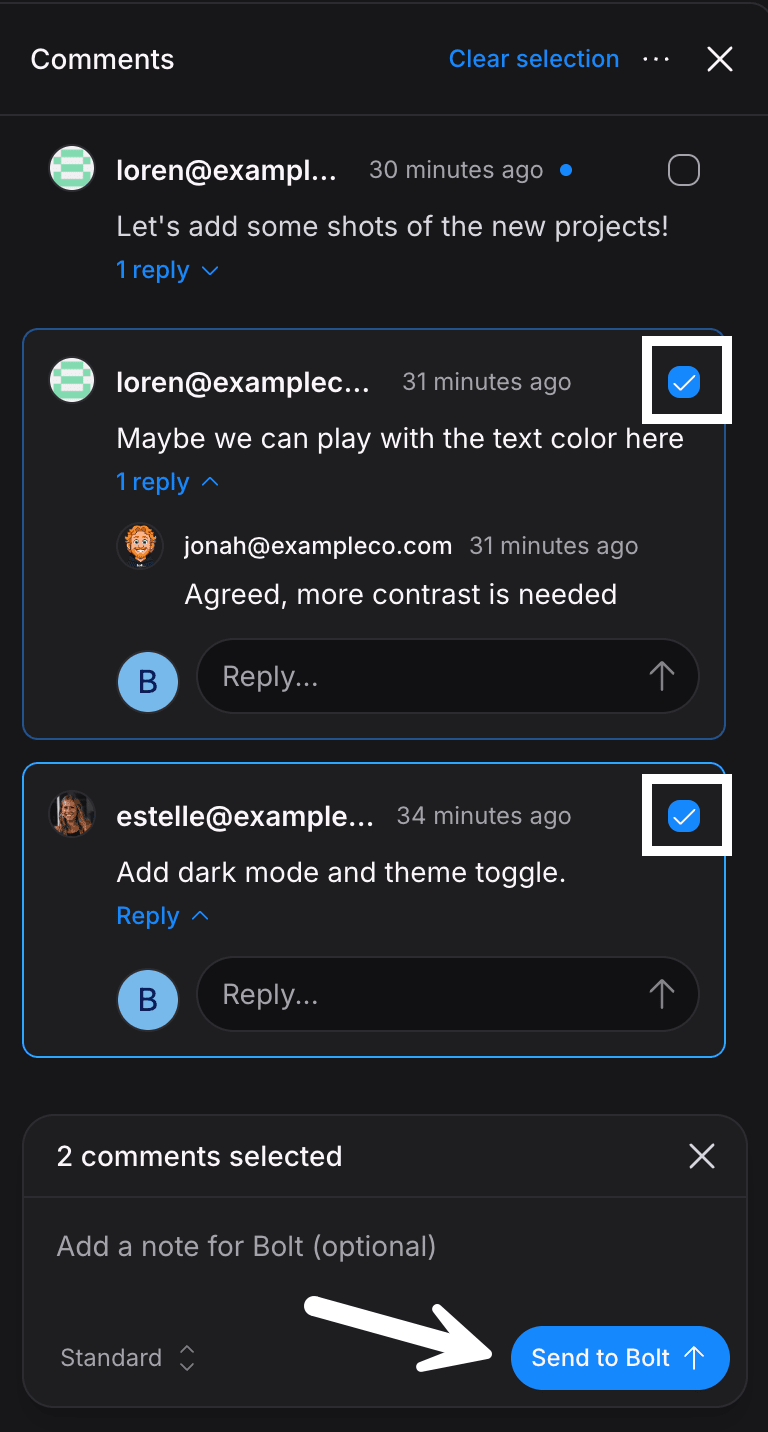 Sending comments is available to editors and co-owners on the project. If Bolt is already working on another prompt, comments you send join the queue.
Sending comments uses tokens, the same as any other prompt. For collaborators, it uses tokens from your own account, not the project owner’s.
- In the Comments panel, select the box next to each comment you want to send. To select every open comment, click Select all.
- (Optional) In the Add a note for Bolt (optional) field, enter any extra instructions for Bolt. A note can be useful if a comment points out a problem or question you already know how to resolve. For example, if a comment says that some text on the page is wrong, you can enter the correct text in your note for Bolt to update it.
- (Optional) To choose which agent handles the prompt, use the agent selector next to Send to Bolt.
- Click Send to Bolt.
Copy a link to a comment
To share the link to a comment:- In the Comments panel, find the comment.
- Point to the comment, click the three dots icon (…), then click Copy link.
Set your notification preference
Bolt emails you about comment activity based on the notification preference you choose for each project. By default, you get an email when someone mentions you in a comment. You can also choose to get an email about every comment on a project. To change your notification preference for a project:- In the Comments panel, in the header, click the three dots icon (…).
- Under Email me about, click Only mentions or Every comment.
Commenting on a mobile device
You can’t add new comments on a phone, but you can read, reply to, and manage existing ones. You’ll find the Comments button in the project menu rather than in the header. To work with comments on a mobile device:- Open your project.
- In the mobile header, tap your project’s name. A menu pops up at the bottom of the screen.
- Tap Comments.