

View file storage
To view your file storage buckets, follow these steps: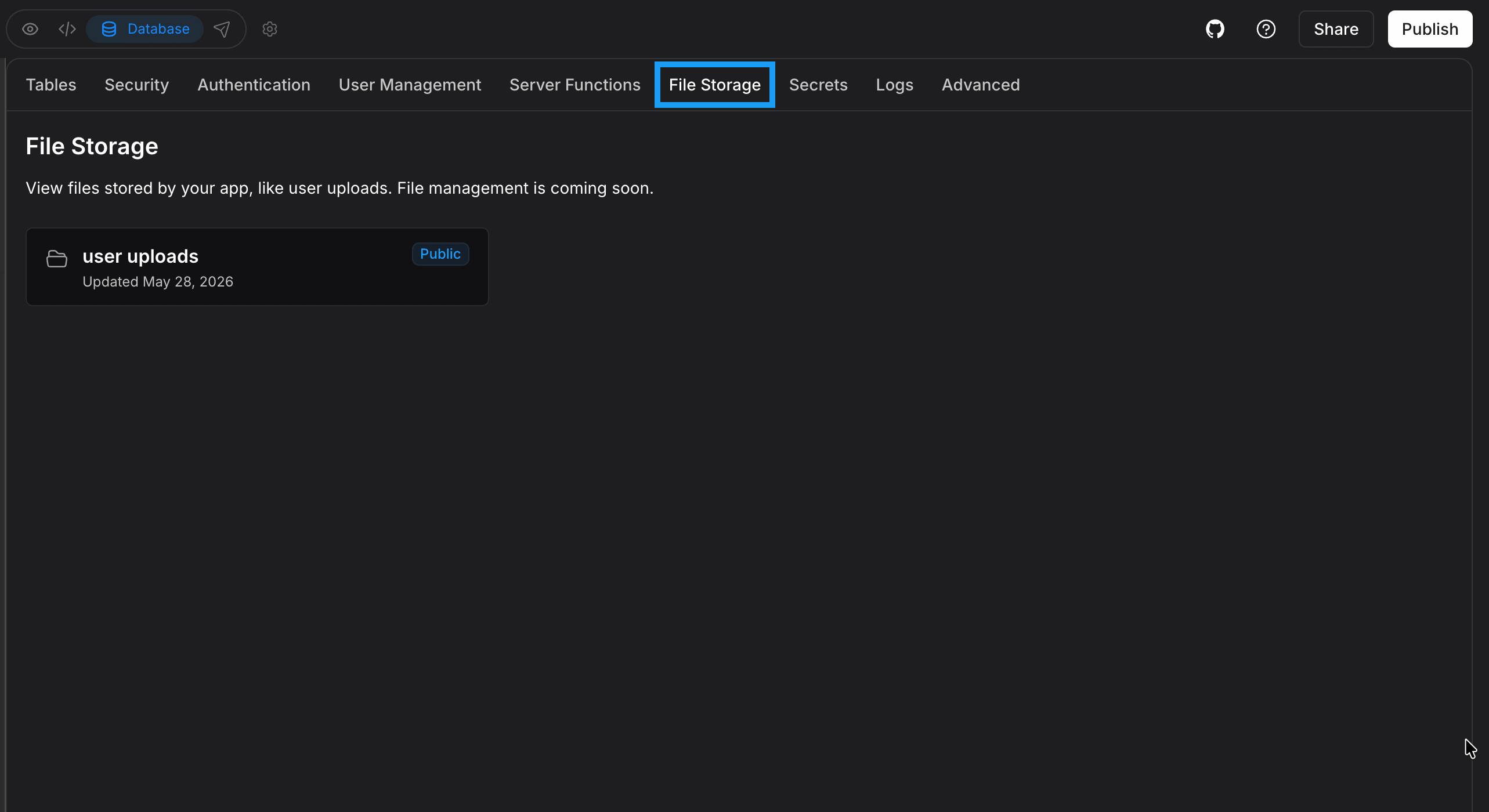
- Log in to your Bolt project.
- Click the database icon in the top center of your screen.
- Click File Storage in the left menu.
At this time, Bolt lets you view the storage buckets you create through prompts, but it does not yet support viewing or managing individual files.
Public and private file storage
Each storage bucket is labeled Public or Private to show who can see its files:- Public: Anyone with the link can see these files, even if they’re not signed in to your app.
-
Private: Only people your row-level security (RLS) policies allow can access these files. Ask Bolt to set these policies up for your app.
Example prompt:
Set up storage security for the [bucket name] bucket so each user can only upload and access their own files. Keep the bucket private and use signed URLs instead of a public link.
Supported file types
Bolt supports the following file formats: Images:.jpg .jpeg .png .gif .webp .svg
Text files: .pdf .txt .doc .docx .py .ipynb .js .mjs .cjs .jsx .html .css .scss .sass .ts .tsx .java .cs .php .c .cc .cpp .cxx .h .hh .hpp .rs .swift .go .rb .kt .kts .scala .sh .bash .zsh .bat .csv .log .ini .cfg .config .json .yaml .yml .toml .lua .sql .md .tex .latex .asm .ino .s
Bolt supports uploading files from many programming languages. While it builds applications using JavaScript technologies (see Supported technologies), you can still upload files written in other languages to help guide your project or ask Bolt to convert them into JavaScript.