

View domain status
To check the status of your connected domains, follow these steps:- Click the gear icon in the top center of your screen, then click All project settings.
- Click Domains & Hosting.
- Review the list of connected domains for status issues.
- (Optional) To refresh the status of your domains, click Verify domains status.
SSL certificates and HTTPS
SSL (Secure Sockets Layer) is the technology that encrypts the connection between a visitor’s browser and your site. When a domain has a valid SSL certificate, visitors can reach it over HTTPS (the secure version of HTTP), which shows the padlock icon in the browser. Without SSL, browsers like Chrome and Safari show a warning before allowing visitors to open a site. Bolt automatically provides SSL certificates for all connected domains, so your site is served over HTTPS by default. How Bolt handles HTTPS:- Domains purchased through Bolt: HTTPS is set up automatically.
- Domains purchased elsewhere: Set up your DNS first, then Bolt will provision HTTPS.
Domain statuses
Your domain status shows whether the domain is set up correctly or something still needs attention. Your domain status can beSecure, Pending, or Warning.
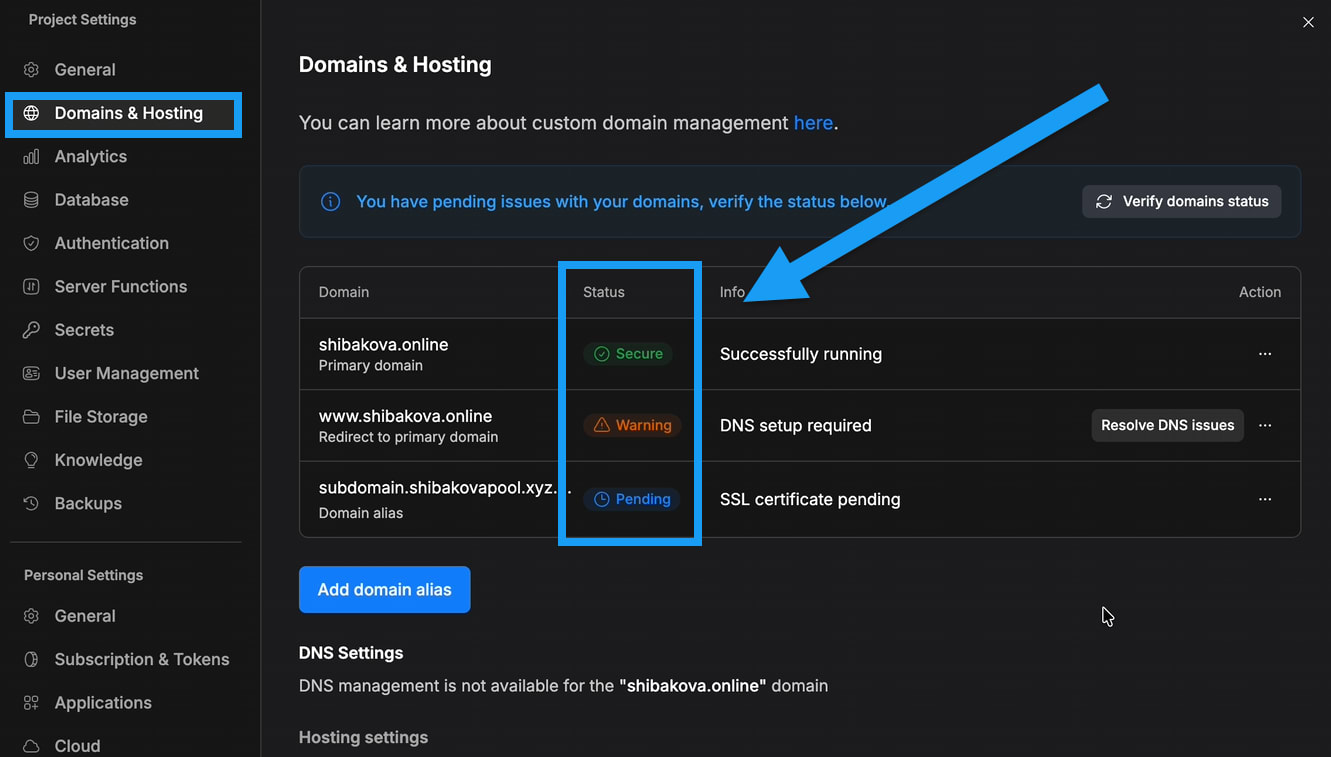
Secure
The domain is fully configured and protected with an active SSL certificate.Pending
The domain is still being approved, or the SSL certificate is in the process of being issued. How long it takes for a Pending status to resolve depends on where you purchased your domain:- Domains purchased through Bolt: Usually resolves within 5–10 minutes.
- External domains purchased outside Bolt: May take up to 24 hours after DNS is correctly configured.
Warning
Your domain needs additional setup. Common causes include:- Incorrect or missing DNS records
- Cloudflare proxy enabled (should be DNS only)
- Conflicting A records pointing to a previous host
- No SSL certificate has been issued or is in the process of being issued
Manually request an SSL certificate
In some cases, one of your domains might not have an SSL certificate yet. When this happens, you can manually request a new one. The most common reasons include:- A certificate was never issued
- The original certificate expired
- Some domains were not included when the first certificate was created
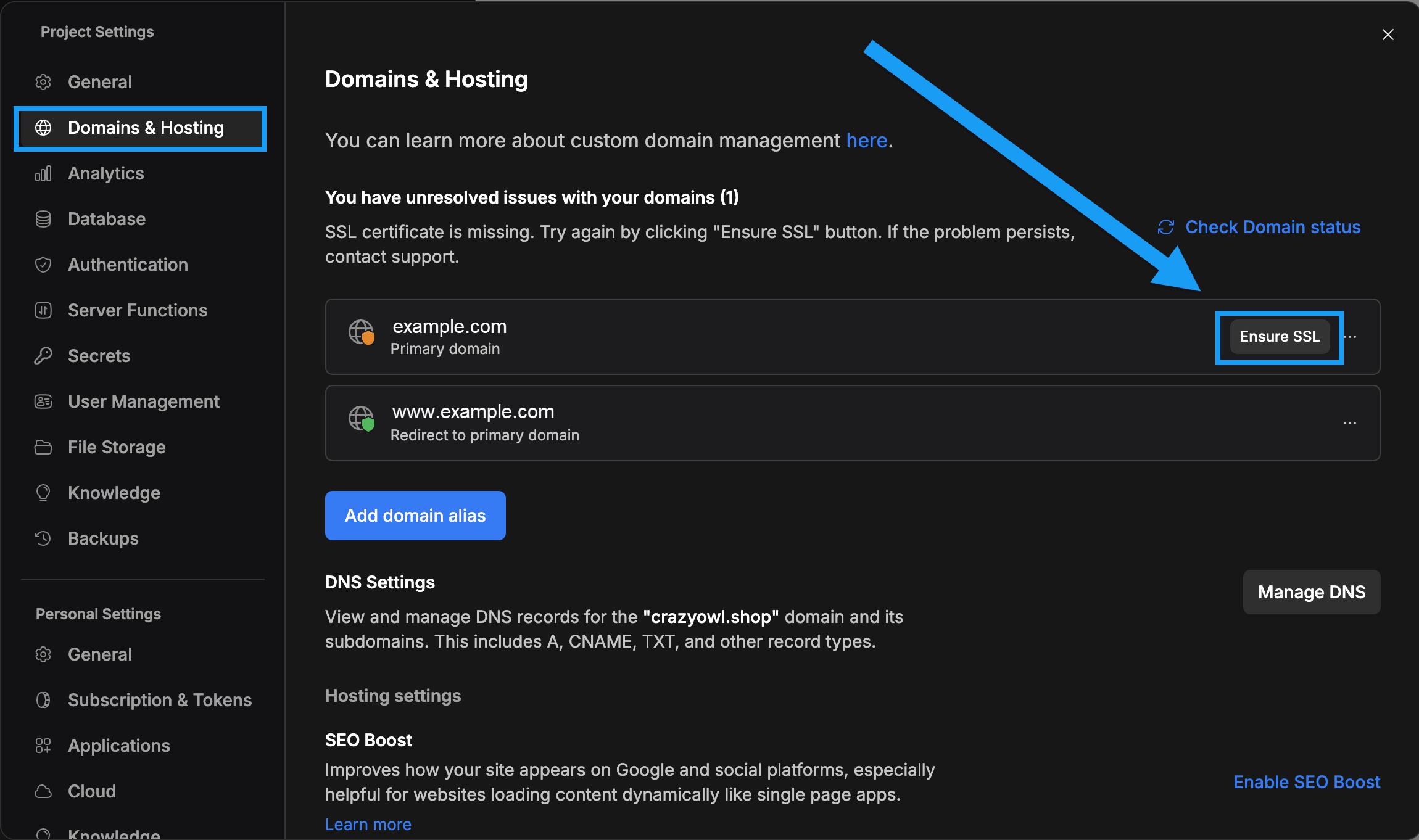
- Click the gear icon in the top center of your screen, then click All project settings.
- Click Domains & Hosting.
- Click Ensure SSL certificate.
Temporary issues after connecting a domain
A new domain can take time to operate smoothly after connecting. In the first 24–48 hours, there’s a chance you could see outdated content, missing assets, or other minor glitches as networks update. These issues are not specific to Bolt or your site. It is simply how content distribution works across the internet, and these issues usually resolve on their own.Troubleshoot SSL provisioning
If your SSL certificate won’t provision or stays inPending status, check for these common issues.
Missing or incorrect DNS records
SSL certificates cover both your root domain (yourdomain.com) and www subdomain (www.yourdomain.com). You need to set up both DNS records correctly:
- www subdomain: Requires a CNAME record pointing to
site-dns.bolt.host. - Root domain (@): Requires an ALIAS, ANAME, or Flattened CNAME record pointing to
site-dns.bolt.host.
A record fallback
Not all DNS providers support ALIAS or ANAME records. Common providers that do include Cloudflare (as “Flattened CNAME”), DNSimple, DNS Made Easy, and Route 53. If your provider doesn’t support these record types, use the A record fallback method. Instead of an ALIAS, ANAME, or Flattened CNAME record, create an A record for the root domain (@) that points to Bolt’s IP address (75.2.60.5). You still need the CNAME record for the www subdomain.
If you use Cloudflare, create your root domain record as a Flattened CNAME, which is Cloudflare’s version of an ALIAS record. Turn off the Cloudflare proxy for your Bolt records. See Cloudflare proxy mode.
Cloudflare proxy mode
Cloudflare’s proxy sends your site’s traffic through Cloudflare before it reaches Bolt. When the proxy is on, the cloud icon next to a DNS record is orange. When it’s off (DNS only), the icon is gray. If you use Cloudflare for DNS and have the proxy enabled for your Bolt records, SSL provisioning fails. To fix this:- Log into Cloudflare.
- Go to DNS settings for your domain.
- Click the orange cloud next to each record that points to Bolt to switch it to DNS only (gray cloud). This includes your
wwwCNAME, your root domain record, and the A record if you’re using the A record fallback. - Wait 5–10 minutes.
- In Bolt, click the gear icon in the top center of your screen, then click All project settings.
- Click Domains & Hosting.
- Click Ensure SSL certificate to retry.
Keep Cloudflare proxy turned off (indicated by a gray cloud icon in Cloudflare) for your Bolt domains. Bolt handles SSL and CDN automatically.
Conflicting A records
SSL provisioning can fail if your domain has A records pointing to a previous hosting provider. To fix conflicting A records:- Log into your domain registrar (for example, GoDaddy, Namecheap, or Cloudflare).
- Go to the DNS settings for your domain.
- Delete any A records that conflict with your Bolt configuration.
- If you’re using ALIAS, ANAME, or Flattened CNAME records (recommended): Remove all A records for the root domain. Your ALIAS or ANAME record handles the connection to Bolt, so any A records will conflict.
- If you’re using the A record fallback method: Remove any A records that don’t point to Bolt’s IP address (
75.2.60.5).
- Wait for DNS propagation (up to 24 hours).
- In Bolt, click the gear icon in the top center of your screen, then click All project settings.
- Click Domains & Hosting.
- Click Ensure SSL certificate to retry.
If SSL still won’t provision
If your certificate still isn’t provisioning after checking the above:- Verify your DNS records are visible globally using a tool like whatsmydns.net.
- Wait the full 24 hours for DNS propagation.
- On the Domains & Hosting page in Bolt, click Ensure SSL certificate again.
- If provisioning still fails, contact support with your domain name.